Skip to content
OpenCms documentation

Image cache

The image cache stores scaled, cropped or otherwise transformed image derivatives so that OpenCms does not have to create them again for every request.

OpenCms supports three image-cache backends: RFS, S3 and FS.

The key architectural difference is whether the cache is local or shared. In a cluster, every node using RFS maintains its own set of image derivatives. With S3 or a shared FS location, all nodes read and write derivatives in the same image-cache backend and therefore share the cached files.

RFS is the classic local image-cache backend. It stores image derivatives in the local file system of each OpenCms instance and is used by default when no alternative backend is configured.

The S3 backend stores image derivatives in S3-compatible object storage. It is a natural choice for installations that already use an S3 storage backend.

The FS backend stores image derivatives in a configured file system location. It is a natural choice for installations that already use an FS storage backend.

If no alternative image-cache backend is configured, OpenCms uses the classic RFS cache and stores generated image derivatives in WEB-INF/imagecache/.

To use a different directory, change the image.folder parameter in the CmsImageLoader configuration in WEB-INF/config/opencms-vfs.xml:

<loader class="org.opencms.loader.CmsImageLoader">
    <param name="image.scaling.enabled">true</param>
    <param name="image.folder">WEB-INF/imagecache/</param>
</loader>

To replace the default RFS cache with an S3 image cache, configure the S3 connection directly in WEB-INF/config/opencms.properties. A typical configuration is:

storage.imagecache.type=s3
storage.imagecache.endpoint=https://storage.example.com
storage.imagecache.bucket=opencms-imagecache
storage.imagecache.accessKey=YOUR_ACCESS_KEY
storage.imagecache.secretKey=YOUR_SECRET_KEY
storage.imagecache.pathStyle=true
storage.imagecache.region=aws-global

The type, endpoint, bucket, accessKey and secretKey properties are required.

The configured access and secret keys can be provided by OpenCms' secret provider.

pathStyle controls whether the bucket name is part of the request path instead of the host name. It defaults to true. Set it to false if the storage service requires virtual-hosted-style access.

Set the region property if required by your S3 service.

The S3 client supports tuning of the HTTP connection pool, connection and socket timeouts, API-call timeouts and retries. All timeout values are specified in milliseconds:

storage.imagecache.connectionTimeout=5000
storage.imagecache.connectionAcquisitionTimeout=10000
storage.imagecache.maxConnections=50
storage.imagecache.socketTimeout=30000
storage.imagecache.apiCallAttemptTimeout=30000
storage.imagecache.apiCallTimeout=60000
storage.imagecache.maxRetries=2

maxConnections limits the number of concurrent requests in the S3 HTTP connection pool and defaults to 50 per OpenCms node. When all connections are in use, connectionAcquisitionTimeout controls how long another request waits for a pooled connection; its default is 10000 milliseconds. Keep the defaults unless the expected concurrency or the behavior of the object storage service requires different limits.

An S3 image cache also requires an <imagecache> element in WEB-INF/config/opencms-system.xml. It controls retention, access-triggered renewal and cleanup. OpenCms aborts startup if an S3 or FS image cache is configured without this element. The common settings are described below.

  • Use an S3 service that is accessible over the local network. As with binary content storage, a remote service that is available only over the Internet is not recommended.
  • Use a dedicated bucket for the image cache. OpenCms rejects a cache bucket that is also configured for active or legacy binary content storage on the same S3 endpoint. The data storage and image cache may use the same endpoint, but they must use different buckets.
  • Do not enable object versioning for the image-cache bucket. Image regeneration and renew-on-use replace objects, while cleanup deletes their current keys. With versioning enabled, replacements create additional object versions and deletions create delete markers. Storage usage and cost can therefore continue to grow even though cache entries appear to have been removed.

To use an FS image cache, configure its root path directly in WEB-INF/config/opencms.properties:

storage.imagecache.type=fs
storage.imagecache.path=/mnt/opencms/imagecache

The configured path must be durable and writable by OpenCms. It must not overlap any file system path used for binary content storage.

The file system must support atomic moves within a single directory. OpenCms writes each derivative to a uniquely named temporary file beside its final location, then atomically moves the completed file into place. Readers therefore see either no cache entry or a complete cache entry, even when the same derivative is generated concurrently.

An FS image cache also requires an <imagecache> configuration element in opencms-system.xml for cleanup, retention and renewal. These settings are shared with the S3 backend and are described below.

Image derivatives remain in the cache when their source images are deleted from the VFS. Without regular cleanup, the image cache therefore continues to grow. Production installations should run the image cache cleanup job on a schedule.

Create a scheduled job for org.opencms.scheduler.jobs.CmsImageCacheCleanupJob. The settings that determine when an entry expires depend on the image-cache backend.

In a cluster, schedule the job on every OpenCms node when using RFS because each node maintains its own local image cache. When using S3 or FS, schedule the job on exactly one node because all nodes share the same image cache. Multiple cleanup jobs would scan and delete entries from the same backend concurrently.

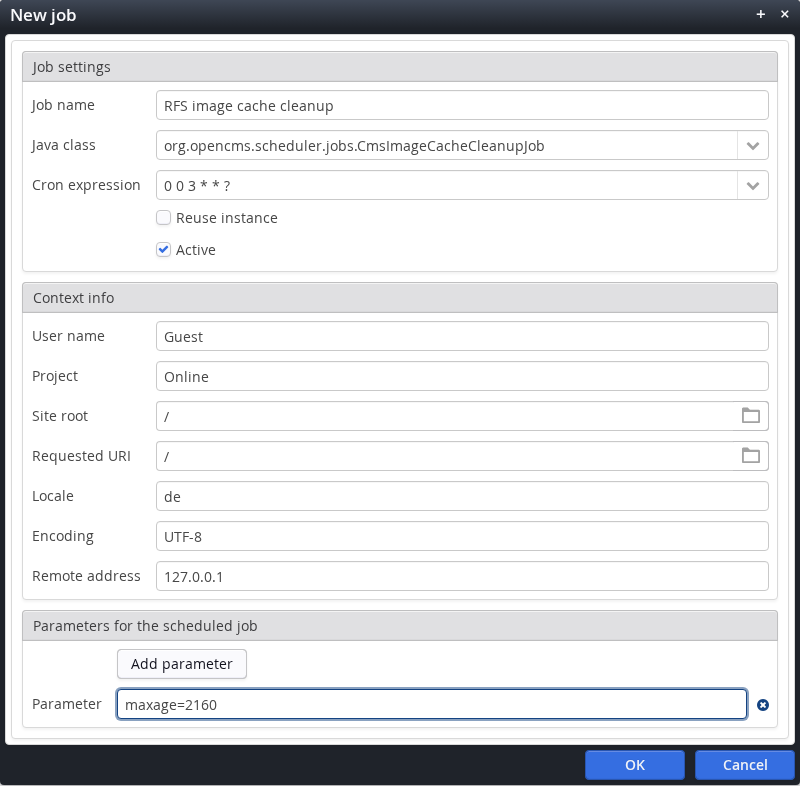
Scheduled RFS image-cache cleanup job with maxage set to 2160 hours

For RFS, add the maxage parameter to the scheduled job. Its value is the maximum age in hours. The job deletes cache files whose file-system Last-Modified timestamp is older than the resulting cutoff.

The following example runs the job daily at 03:00 and uses maxage=2160 to remove entries with a Last-Modified timestamp older than 90 days:

When OpenCms accesses an RFS cache entry, it renews the file's Last-Modified timestamp. Requests served by a reverse proxy, web server cache or CDN do not reach OpenCms and do not renew the timestamp.

If maxage is missing or invalid, the job uses 168 hours.

Scanning and deleting a large S3 or FS cache can put significant load on the shared storage. This is why S3 and FS have extended cleanup settings that replace the simple maxage job parameter that RFS uses. The extended cleanup settings limit the number of deletions and the runtime of each job execution.

The following configuration fragment shows the cleanup settings with their default values. Configure them in the <imagecache> element in WEB-INF/config/opencms-system.xml. The common cleanup limits apply to S3 and FS, while the S3 settings control S3 delete requests:

<imagecache>
    <cleanup
        max-deletes-per-run="10000"
        max-runtime="PT5M" />
    <s3
        delete-batch-size="1000"
        delete-concurrency="1" />
</imagecache>

This element is required when storage.imagecache selects S3 or FS. Durations use ISO-8601 notation, for example P60D for 60 days.

The settings have the following effects. If a run reaches one of the common limits, subsequent job executions process the remaining expired entries.

Default: 10000

Maximum number of entries deleted by one scheduled cleanup run.

Default: PT5M

Soft maximum runtime of one scheduled cleanup run. The current backend batch may finish.

Default: 1000

Maximum number of keys in one S3 multi-object delete request. Values above 1000 are rejected.

Default: 1

Number of concurrent S3 delete batches.

The Image cache administration app can list generated derivatives, delete entries older than a selected age and clear the cache with a background report. Use it for maintenance and exceptional cleanup rather than as a replacement for the scheduled job. The limits configured under <cleanup> do not restrict an administrator explicitly clearing the cache in the app.

Updating Last-Modified is more expensive for S3 and FS than for local RFS, so the extended renewal settings stagger updates and reduce timestamp clustering: frequently used entries receive a new timestamp only occasionally, while entries that are rarely or never used expire and are removed sooner.

Retention and access-triggered renewal are configured with the <imagecache> element in WEB-INF/config/opencms-system.xml. This element is required when storage.imagecache selects S3 or FS. Durations use ISO-8601 notation, for example P60D for 60 days.

The following example includes the common retention settings and the optional renewal settings for both external backends. In an actual configuration, include only the backend-specific element for the selected image cache and omit it when the defaults are sufficient.

<imagecache>
    <retention
        mode="renew-on-use"
        max-age="P60D"
        renewal-window="P30D"
        renewal-jitter="P14D" />
</imagecache>

There are no default values for the retention mode or its required time attributes. They must be configured explicitly. For renew-on-use, renewal-window must be shorter than max-age, and renewal-jitter must not exceed renewal-window.

Required time attributes: max-age

Entries are not renewed on access. The backend Last-Modified timestamp starts the retention period.

Required time attributes: max-age, renewal-window, renewal-jitter

Successful use can renew an entry before it expires. FS touches the file. S3 conditionally copies the object onto itself.

Required time attributes: None

OpenCms performs neither automatic retention cleanup nor access-triggered renewal. Retention is delegated to an external lifecycle or cache-management system.

All backends use Last-Modified as the retention timestamp.

  • max-age is the age at which the cleanup job may delete an entry.
  • renewal-window determines how long before max-age entries may begin to become eligible for renewal.
  • renewal-jitter distributes this eligibility across cache entries in the renewal window.

The actual renewal threshold for an entry is calculated as follows:

Last-Modified + (max-age - renewal-window) + key-derived jitter

With the configuration above, a newly written entry follows this lifecycle:

  • The base renewal threshold is day 30: P60D - P30D.
  • The key-derived jitter moves the individual threshold to somewhere between day 30 and day 44.
  • If an entry receives a jitter of nine days, an access on day 35 does not renew it. The first successful access on or after day 39 can set Last-Modified to the current time, starting the lifecycle again.
  • If the entry is not renewed, it becomes eligible for cleanup after 60 days.

The backend-specific renewal attributes are expert tuning options. Keep their defaults unless monitoring shows that renewal work cannot keep up or that the storage backend needs stricter limits. For an FS cache, selecting renew-on-use automatically enables timestamp renewal.

<imagecache>
    <fs
        touch-concurrency="1" />
    <s3
        copy-concurrency="2"
        max-copies-per-second="20"
        renewal-queue-capacity="10000" />
</imagecache>

Default: 1

Maximum number of concurrent FS touch operations per OpenCms instance.

Default: 2

Number of concurrent S3 self-copy operations used for renewal per OpenCms instance.

Default: 20

Maximum rate at which S3 renewal copies are started on one OpenCms instance.

Default: 10000

Maximum number of S3 renewal tasks waiting on one OpenCms instance.

When the renewal workers cannot keep up, OpenCms logs the warning Image cache access renewal queue is full; rejected accesses: <count>. Image delivery continues and only the current renewal attempt is discarded; a later access can trigger another attempt.

Repeated warnings can justify tuning. For FS, increase touch-concurrency only after confirming that the shared file system can handle more parallel metadata writes. For S3, first check latency, throttling and request errors. Increase copy-concurrency or max-copies-per-second only when the object store has sufficient capacity. Increasing renewal-queue-capacity can absorb temporary bursts but does not solve sustained overload.

OpenCms validates a configured S3 or FS image cache during startup. For S3, it writes, reads and deletes a small test object. For an FS backend, it performs the corresponding operation with a temporary file and validates the atomic write path.

OpenCms aborts startup if the external backend has no explicit <imagecache> configuration or validation fails. Check the startup log for an invalid backend ID, an unavailable endpoint or path, missing S3 permissions, invalid credentials or a file system without the required atomic-move behavior.

  1. Back up WEB-INF/config/opencms.properties, WEB-INF/config/opencms-system.xml and, when changing the classic RFS location, WEB-INF/config/opencms-vfs.xml.
  2. Configure the S3 or FS backend in opencms.properties.
  3. Configure retention and maintenance with <imagecache> in opencms-system.xml.
  4. Restart OpenCms and verify that startup validation succeeds.
  5. Request a known scaled image and verify that the derivative appears in the configured backend.
  6. Request the same image variant again and verify successful delivery.

Existing derivatives are not migrated. They are generated in the new backend when requested. After the new cache has been verified, the old image-cache directory or bucket can be cleared to free storage space.

If a reverse proxy or CDN is used in front of OpenCms, it may continue to serve an older response during verification. Purge that external cache when an immediate end-to-end check is required.